

If your wireless mouse has lost its connection to the USB receiver (dongle), follow these steps to re-establish the link using the pairing utility.
⚠️ Prerequisites
Ensure your mouse is compatible with Bibimbap (older models are not compatible).
Step-by-Step Instructions
1. Connect the dongle
Connect both the dongle directly to your computer's USB port. Make sure the port is 3.0 or higher.
2. Open Bibimbap
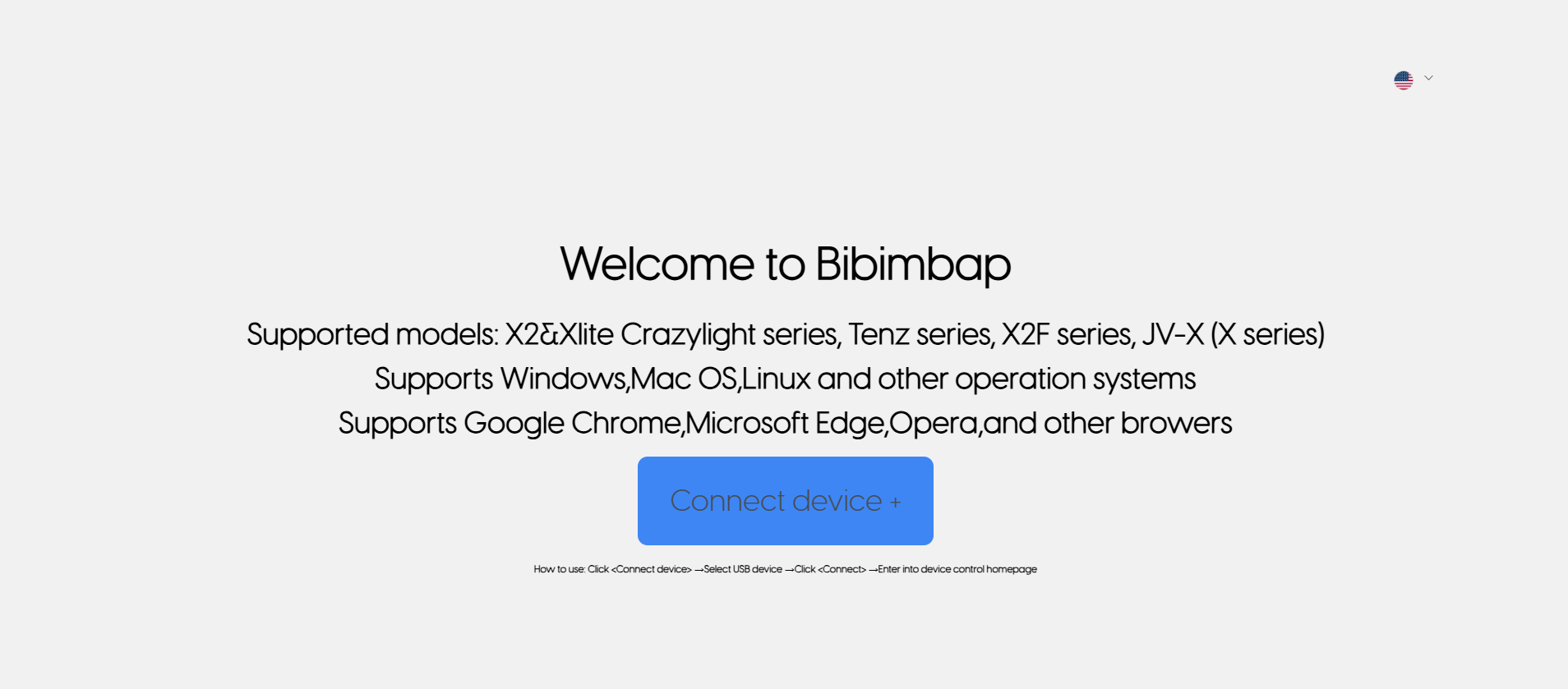
Go to https://bbb.pulsar.gg/.
3. Select your device
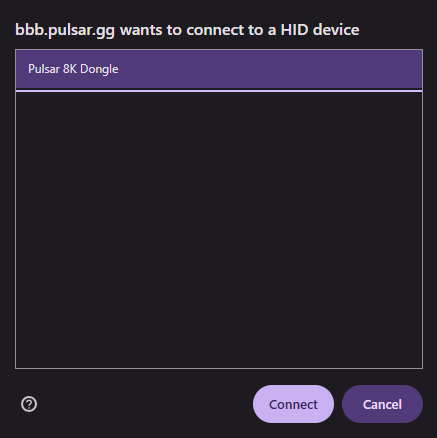
When you open Bibimbap, click ‘Connect device +’ and then you should see a list of devices pop up. Select your device, and then click ‘connect’ to continue with the process.
4. Start the pairing process
Once the device is connected and you see a message saying ‘Welcome to Bibimbap’, press your space key and you should see a new window with a list of devices. Select the device you want to pair, and click ‘Connect.’
5. Put your mouse on pairing mode
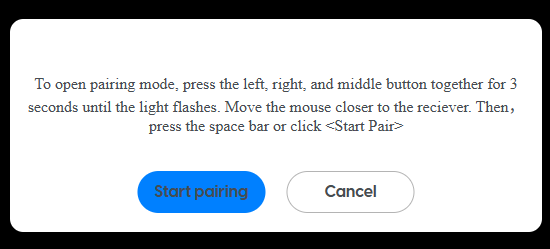
Move your mouse close to the receiver. Then, press the left, right and middle buttons together for three seconds (make sure the ON/OFF switch on your mouse is ON!); you’ll see the mouse light flash. Then, press the space bar (if you do not have a spare mouse) or click ‘Start pairing.’
6. Success!
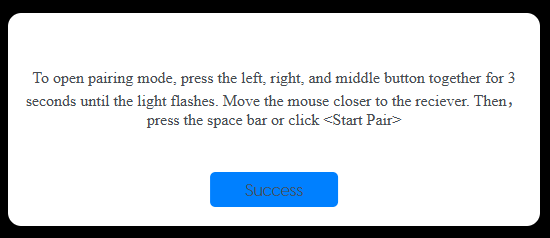
Once you see the ‘Sucess’ button, the pairing process has finished and you can already use your mouse wirelessly.
** Alternative method **
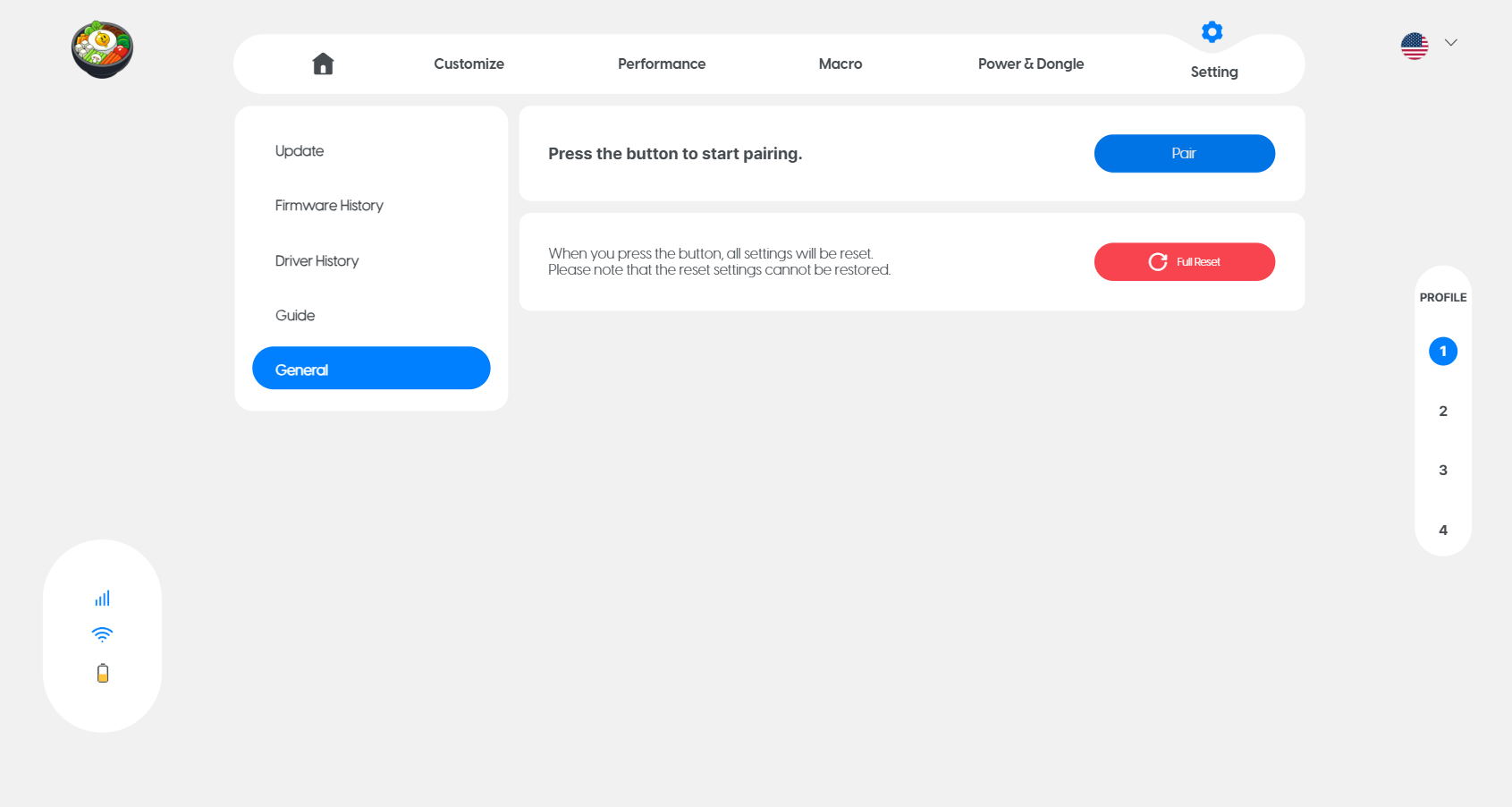
You can also pair mouse and dongle again after opening the settings on Bibimbap. You can go to 'Setting' on the top right corner of the screen, then click 'General', and finally click on the 'Pair' button.
After that, you can follow steps 5 and 6 from this guide.
⚠ Troubleshooting Tips
Device not found: Try using a different USB port or restarting the software. Remember that the USB port has to be 3.0 or higher, and it’s convenient if it’s located on the back of your CPU.
Pairing Failed: Ensure no other wireless devices are interfering nearby and that the mouse is within 10cm of the dongle during the process.
Firmware: Check if there is a firmware update available for either the mouse or the dongle within the app.
If you have any further questions, please don’t hesitate to contact us anytime.